2026-06
May 26th, 2026
Note
Access to ticket links is permission-based. Some links included in these release notes may not be accessible if the ticket belongs to another customer or project outside your permissions. If you need additional information regarding any item listed, please contact our team.
What’s new?
| 7231 | Returned Mail Queue |
Improvements
| \(^▽^)/ | Replacement Values now are presented only where they can be used. /td> |
| 7743 | Added dynamic fields for Document Creation and made other enhancements |
| 7816 | Added a log trigger for “Waive ETF”. |
| 7813 | OpsAdmin now submits customer’s language preference to the ECI Billing System. |
| 7671 | Added Dynamic fields for Tiered Plans |
| \(^▽^)/ | Improved Filtering and fields presentation in Customer Support. |
Fixes
| 7829 | Several adjustments for Stepped plans submission to the ESG Billing System. |
| 7836 | Correction for some issues at the time of cloning a stepped plan. |
| 7778 | Adjusted validation at the time of removing a commodity from a document. |
| 7790 | Corrections for error at the time of processing an enrollment through Quick Enrollments. |
| 7802 | Fixed issues when updating accounts from Renewal Pending to Renewal Accepted while connecting to the ECI Billing System. |
| 7827 | Corrected validation message in Sales Importer when attempting to import an account without a promo code but with a master, agent and subagent code. |
| 7841 | Fix for import issues in Pricing Matrix. |
| 7800 | Adjusted renewal notification functionality to prevent notices from going to customers that have renewed. |
| 7818 | Added back logic to the ETF calculation popup so that today’s date is used when no drop date is available. |
| 7854 | Sales Importer: Added validation for incorrectly formatted zip codes. |
| 7844 | Adjusted validation message when OpsAdmin can’t update a customer’s billing delivery method using ECI’s SOAP call methods. |
| 7839 | Fix for Sales Importer to prevent incorrect LDC numbers from being submitted to the Billing System. |
Features & Fixes Details
Returned Mail Queue
The Returned Mail Queue helps users manage printed letters that could not be delivered due to invalid or outdated mailing addresses.
Using this feature, users can:
- Scan and register returned letters
- Correct mailing addresses directly from the queue
- Regenerate letters
- Send the communication as an email instead
- Discard letters that no longer require action
How Returned Letters Are Added to the Queue
Each printed letter includes:
- A Letter ID
- A QR code containing the Letter ID
When a letter is returned, users can add it to the Returned Mail Queue by:
- Scanning the QR code using a barcode/QR scanner
- Manually entering the Letter ID
Scanning Returned Letters
To add returned letters to the queue:
- Navigate to Communications > Returned Mail Queue
- Click Scan Mail
- Scan the QR code from the returned letter or manually enter the Letter ID
- Press Enter or click Add
- Repeat the process for additional letters
- Click Confirm to add the letters to the queue
Notes
- The scanner can be configured to automatically submit scanned codes without additional clicks.
- After each scan or entry, the input field is automatically cleared to speed up processing.
Returned Mail Queue Overview
The Returned Mail Queue displays all letters that were physically returned after being printed and mailed.
By default, the queue loads letters with a Pending status.
Users can filter the queue using standard communication filters, as well as the Return Status filter.
Editing Addresses
Users can enable Edit Mode to quickly update mailing addresses directly from the queue.
When Edit Mode is enabled:
- Address fields become editable
- Users can quickly move between records
- Save and Cancel actions become available
This process helps accelerate address corrections without opening each record individually.
Available Actions
Each returned letter can be processed using one of the following actions.
- Regenerate Letter: Creates a new version of the original printed letter using the updated address information. This allows the communication to be mailed again while maintaining a history of previous attempts.
- Send as Email: Generates and sends the equivalent communication as an email instead of a physical letter.
Important: If no email template is configured for that communication type, the system displays a warning message and the email cannot be generated. - Discard Letter: Marks the returned letter as discarded. Discarded letters remain in the queue for historical tracking purposes but require no further action.
- View Letter: Opens the original letter for review.
Bulk Actions
Users can process multiple returned letters at the same time using bulk actions.
Available bulk actions:
- Regenerate all selected letters
- Send all selected letters as emails
- Discard all selected letters
Return Statuses
Returned letters can have one of the following statuses:
| Status | Description |
| Pending | The returned letter was added to the queue and requires review |
| Regenerated | A new letter was generated |
| Sent As Email | The communication was resent as an email |
| Discarded | No further action will be taken |
Permissions
Access to the Returned Mail Queue requires the permission: Returned Letter Queue: Access
Users without this permission will not be able to access the screen or process returned letters.
Activity Logging
The system automatically logs all returned mail actions for audit purposes, including:
- Letter regeneration
- Email resend actions
- Discard actions
These logs are associated with the corresponding customer and communication records when applicable.
Replacement Values now are presented only where they can be used
Replacement values are available when working with autoresponders and document templates, but some of them only make sense in one of these tools.
The system will now show valid values in the variables list.
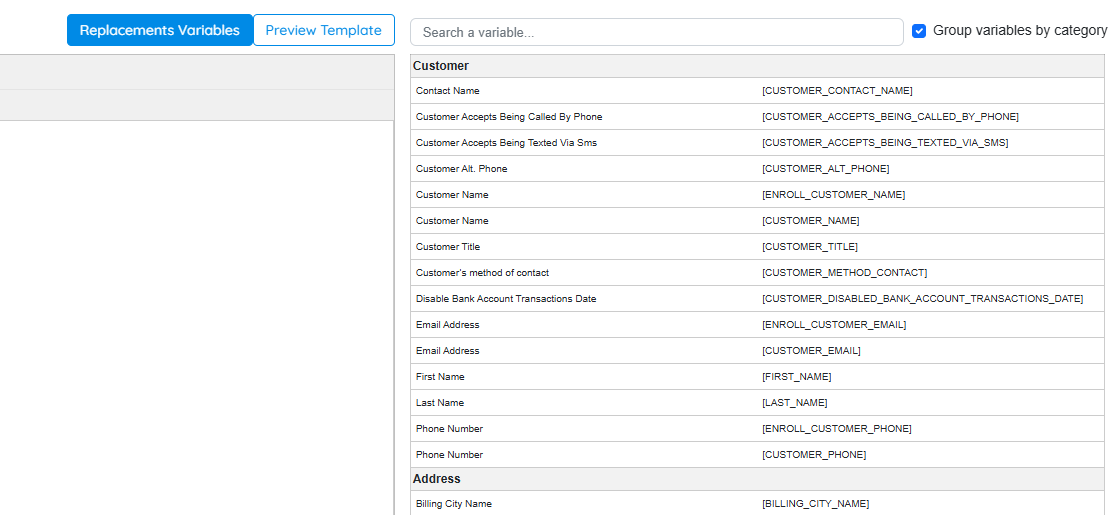
Not all variables have been adjusted yet, more may be adjusted in future releases. From now on, the following replacement values will only be available for autoresponders:
- [DATE_TO_PRINT]
- [EMAIL_GENERATION_DATE]
- [EMAIL_GENERATION_MONTH]
- [EMAIL_GENERATION_YEAR]
- [LETTER_GENERATION_DATE]
- [LETTER_GENERATION_MONTH]
- [LETTER_GENERATION_YEAR]
Added dynamic fields for Document Creation
Added the following dynamic fields that return the date that a document was created and/or updated, respectively:
- [DOC_CREATE_MONTH]
- [DOC_CREATE_YEAR]
- [DOC_UPDATE_MONTH]
- [DOC_UPDATE_YEAR]
These are only available for document templates.
Added Dynamic fields for Tiered Plans
Added [RATE_TIER_MIN_{0}] and [RATE_TIER_MAX_{0}]: These return the minimum and maximum usage of each position.
Adjusted [RATE_TIER_RATE_{0}]: Returns the same data, but based on the position instead of the traunch.